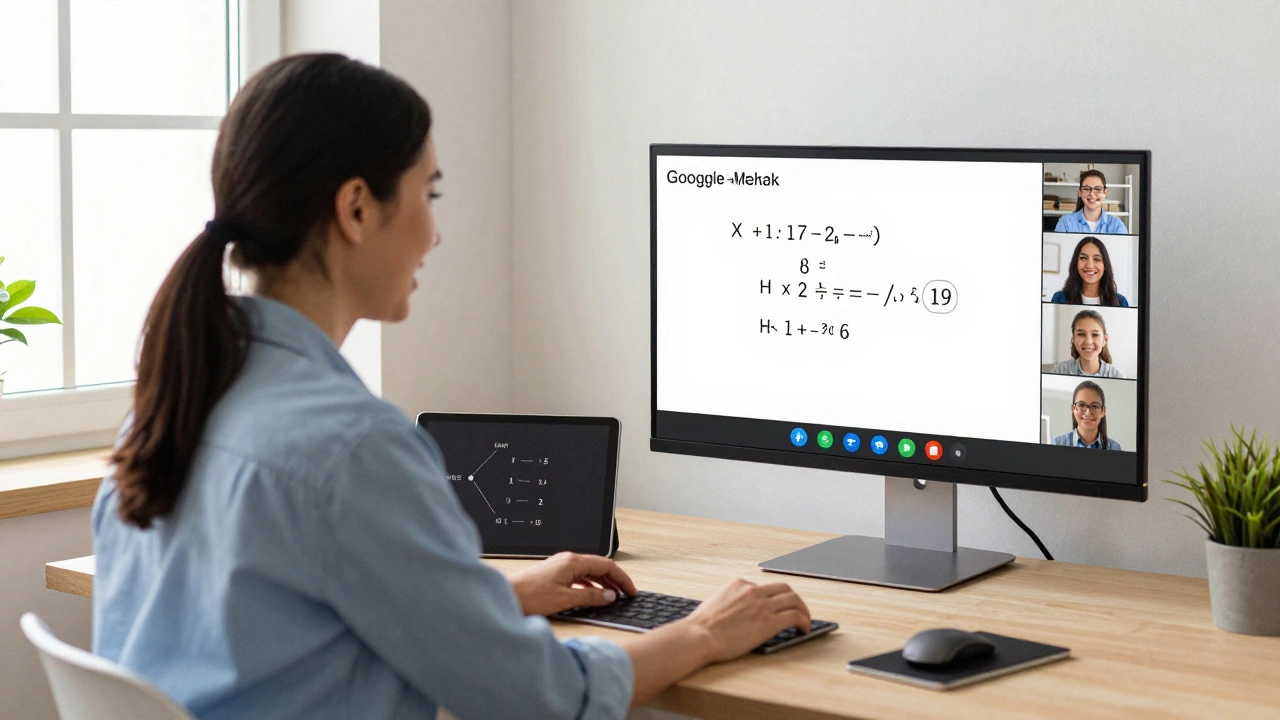
Teaching online doesn’t have to cost a fortune. If you’re a tutor, teacher, or coach looking to reach students without paying for expensive software, there are solid, free options that actually work. You don’t need to sign up for a paid plan to deliver clear lessons, manage assignments, or keep students engaged. The right tools are out there - and they’re free right now in 2026.
What to Look for in a Free Online Teaching App
Not all free apps are created equal. Some look good on paper but crash during live lessons. Others let you record classes but can’t handle more than five students. Here’s what actually matters when picking a free tool:
- Real-time video - No lag, no freezing. You need smooth video so students can see you and you can see them.
- Screen sharing - Essential for showing slides, whiteboards, or your screen while explaining math or coding.
- Chat and reactions - Students should be able to ask questions without interrupting.
- Recording - If you want students to review lessons later, the app must save sessions.
- No time limits - Many free apps cut you off after 40 minutes. Avoid those if you teach 60+ minute classes.
- Easy to join - Students shouldn’t need to create accounts or download apps. A simple link should work.
These aren’t nice-to-haves. They’re the bare minimum. If an app doesn’t do these well, it’s not worth your time - even if it’s free.
Top Free Apps for Online Teaching in 2026
1. Google Meet
Google Meet is the quiet winner for most teachers. It’s built into Google Workspace, which most schools and educators already use. You can start a meeting with one click from Gmail or Google Calendar. Up to 100 participants can join for free, and there’s no time limit on meetings. That’s rare.
Screen sharing works perfectly. You can share your entire screen, a Chrome tab, or just a specific window. The chat box lets students type questions. The recording feature saves meetings directly to your Google Drive - no extra steps.
Students don’t need a Google account. They just click the link. That’s huge for parents who don’t want to sign up for another service.
2. Zoom (Free Plan)
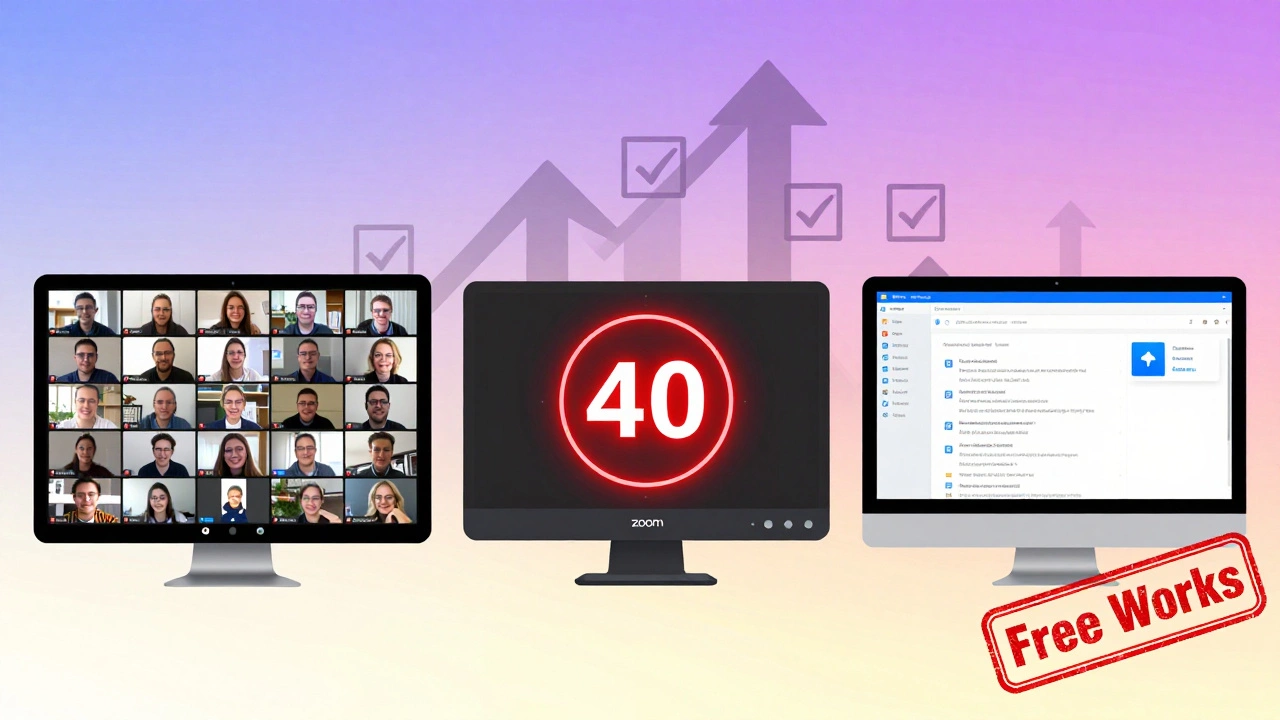
Zoom still has a strong reputation, but its free plan has a catch: 40-minute limit on group meetings. If your class runs longer than that, you’ll have to restart. That’s annoying if you’re teaching a 75-minute session.
Still, Zoom’s features are solid. Whiteboard tools, breakout rooms, and screen sharing work reliably. The recording feature saves to the cloud, but you need to log in to download it. If you teach short sessions - like 40-minute tutoring blocks - Zoom’s free plan is fine.
Don’t use Zoom if you’re teaching daily 60+ minute classes. The constant restarts break flow.
3. Microsoft Teams (Free Version)
Teams is often overlooked, but it’s powerful for educators. The free version supports up to 300 participants and has no time limit. That’s better than Zoom and on par with Google Meet.
It integrates with OneNote, which is great if you use digital notebooks for lesson plans. You can assign tasks, share files, and track student progress inside Teams. The chat and reactions work smoothly. It also records meetings automatically and saves them to OneDrive.
The downside? Students need a Microsoft account to join. If your students are under 13 or don’t use Microsoft products, this adds friction.
4. Jitsi Meet
Jitsi Meet is the most private option. It’s open-source, ad-free, and doesn’t track you. You don’t even need to sign up. Just go to meet.jit.si, create a room name, and share the link. No emails. No passwords.
It supports up to 75 participants, screen sharing, recording (via third-party tools), and live subtitles. The interface is clean and simple. No ads. No upsells.
It’s not as polished as Google Meet or Teams, but if privacy matters - especially for homeschoolers or teachers in sensitive regions - Jitsi is unmatched.
5. Discord (for smaller groups)
Discord isn’t built for teaching, but many tutors use it anyway. Why? It’s free, stable, and has voice channels, screen sharing, and text chat. You can create a server, set up a voice channel for class, and use the text channel for questions.
It works great for small groups (under 20 students). You can record voice sessions with third-party tools. The app runs on mobile, desktop, and browser - no install needed.
But it’s not designed for teaching. No whiteboard. No assignment tracking. No calendar. You’ll need to use Google Docs or Notion alongside it.
Comparison Table: Free Apps at a Glance
| App | Max Participants | Time Limit | Recording | Screen Sharing | Student Login Needed? |
|---|---|---|---|---|---|
| Google Meet | 100 | None | Yes (to Drive) | Yes | No |
| Zoom | 100 | 40 minutes | Yes (cloud) | Yes | Yes |
| Microsoft Teams | 300 | None | Yes (to OneDrive) | Yes | Yes |
| Jitsi Meet | 75 | None | Yes (manual) | Yes | No |
| Discord | 99 | None | Yes (external) | Yes | Yes |
Which One Should You Choose?
If you teach groups of 50+ students with no time limits, go with Google Meet. It’s reliable, simple, and integrates with tools most teachers already use.
If you teach short, daily sessions and want breakout rooms and whiteboards, Zoom still works - just plan around the 40-minute limit.
If you need maximum capacity (over 100 students) and want to manage assignments, Microsoft Teams is the most powerful free option.
If you care about privacy and don’t want any tracking, Jitsi Meet is your best bet. No sign-ups. No ads. No data collection.
If you’re teaching small groups (under 20) and already use Discord for other things, stick with it - but pair it with Google Docs for lesson materials.
What Not to Do
Don’t use apps that force you to upgrade. Many free tools lure you in with basic features, then block recording, screen sharing, or chat unless you pay. Avoid them.
Don’t switch apps every week. Students get confused. Pick one, train your students on it, and stick with it.
Don’t assume free means easy. Some apps look simple but crash on older devices. Test with a few students before launching your full class.
Pro Tips for Better Online Teaching
- Always test your audio and screen sharing 15 minutes before class. A quick check saves chaos.
- Use a second device as a camera. A tablet or phone on a stand gives you a better angle than a laptop.
- Share your class link in advance. Put it in your email signature, Google Classroom, or WhatsApp group.
- Record every session. Even if students don’t ask for it, they’ll appreciate having it later.
- Use a simple background. A plain wall or bookshelf looks professional. Avoid clutter.
What About Whiteboards and Assignments?
None of these apps have built-in whiteboards that rival a physical one. But you can use free tools alongside them:
- Excalidraw - Free, real-time digital whiteboard. Share the link and draw with students.
- Google Jamboard - Google’s free whiteboard. Works inside Meet and Teams.
- Notion - Free for personal use. Use it to post assignments, track progress, and share resources.
You don’t need one app to do everything. Use Google Meet for video, Excalidraw for drawing, and Notion for assignments. That’s a solid free stack.
Final Thought
The best app isn’t the one with the most features. It’s the one you can use without stress. Google Meet wins for most teachers because it just works. No surprises. No limits. No login hassle. If you’re starting out, begin there. If you need more power, try Teams. If privacy matters, go with Jitsi.
Free doesn’t mean low quality. In 2026, the best tools for online teaching are free - if you know where to look.
Can I teach online for free without any app?
Yes, but not well. You can use phone calls or email, but you lose video, screen sharing, and real-time interaction. For effective teaching, you need a platform that supports live video and interaction. Free apps like Google Meet or Jitsi are the bare minimum you should use.
Do I need to pay for a premium plan to teach better?
Not at all. Most premium features - like larger participant limits, advanced analytics, or branding - don’t improve teaching quality. The core tools you need (video, screen sharing, recording) are available for free. Paying only helps if you have 100+ students daily or need branded links. For most teachers, free is enough.
Which app is best for teaching kids under 12?
Google Meet is the safest. Kids don’t need to create accounts. Parents just click the link. It’s also the most stable on tablets and phones. Avoid Zoom and Discord - they require logins and have more complex settings that confuse young students.
Can I record classes for free?
Yes, but only on certain apps. Google Meet saves recordings to your Google Drive automatically. Microsoft Teams saves to OneDrive. Zoom saves to the cloud but requires a login. Jitsi doesn’t record natively - you’ll need to use a screen recorder like OBS (free) to save the session yourself.
Is Jitsi Meet really private?
Yes. Jitsi Meet is open-source, meaning anyone can check its code. It doesn’t track users, store data, or show ads. Meetings are encrypted and hosted on public servers. No email or sign-up is needed. It’s the most private option available for free.
What if my students have slow internet?
Use Google Meet or Jitsi. Both adjust video quality automatically based on connection speed. Turn off video for students who struggle - audio-only still works. Avoid Zoom if bandwidth is low; it uses more data and freezes more often.
Can I use these apps for one-on-one tutoring?
Absolutely. All the apps listed work perfectly for single-student sessions. In fact, they’re often better for one-on-one teaching because there’s less complexity. Google Meet is the easiest to set up for private lessons.
Next Steps
Try one app this week. Set up a 15-minute test session with a friend or student. See how the video holds up. Test screen sharing. Try the chat. See if the recording works. Then decide.
You don’t need to try all five. Pick one that matches your needs and stick with it. Consistency matters more than features. The best app is the one you’ll actually use - not the one with the fanciest logo.

Anirudh Vaidya
I am an education consultant specializing in the Indian education system, and I enjoy exploring innovative teaching methods. My passion is writing about educational reforms and developments happening in India, trying to bring awareness to global audiences. I regularly contribute to various educational journals and participate in conferences worldwide. I believe in lifelong learning and am always keen to exchange ideas with fellow educators.